
Ads.txt (Authorized Digital Sellers) is an IAB standard that lets publishers declare which companies are authorised to sell their ad inventory. Demand-side platforms (DSPs) and advertisers check your /ads.txt file before bidding, so keeping it complete and current directly impacts your fill rate and revenue.
The Advally XenForo plugin includes built-in ads.txt management to keep your ads.txt up to date automatically.
Enable Ads.txt Management
In Admin → Options → Advally Advertising → Plugin Configuration, find the Ads.txt section.
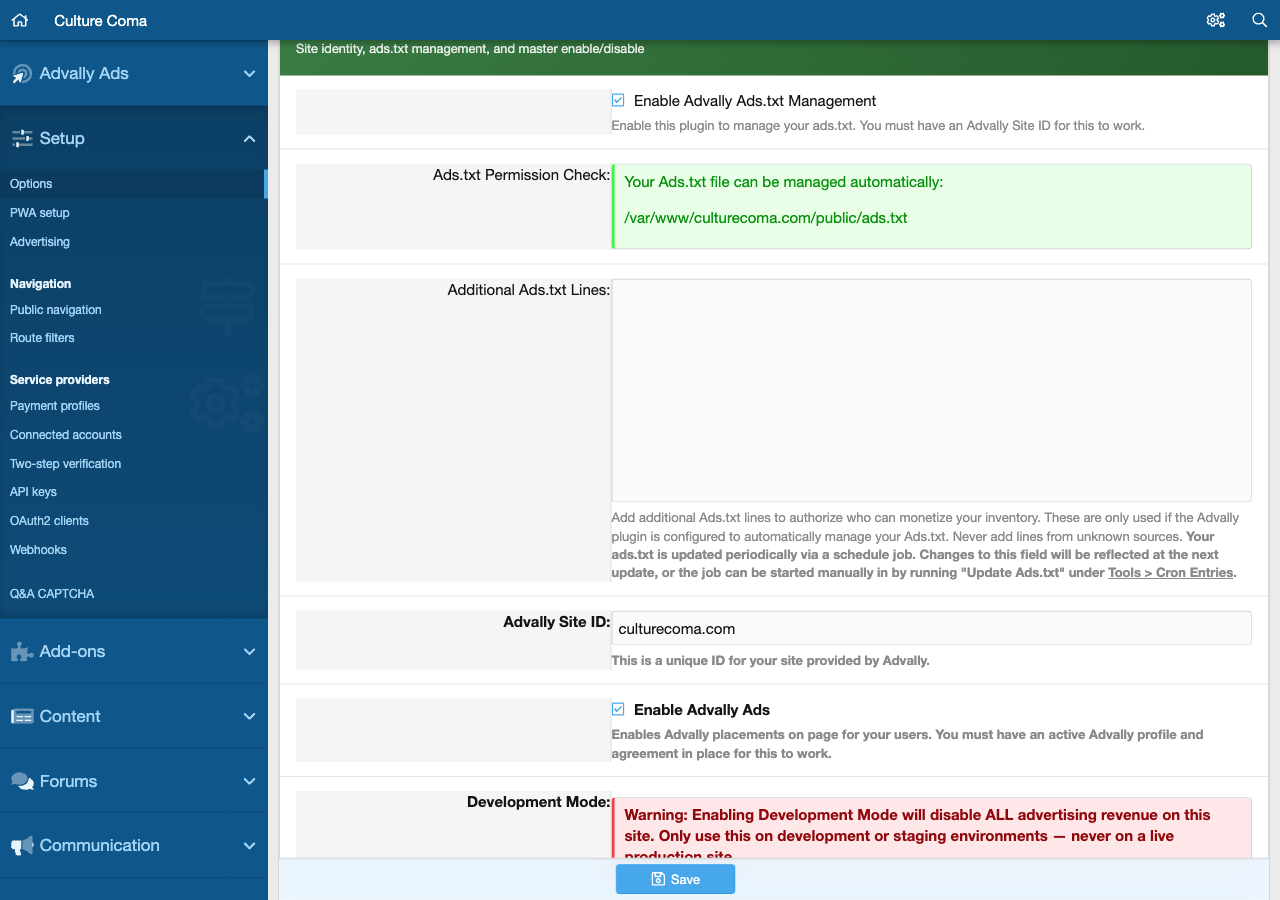
Toggle Enable Ads.txt Management to on. The plugin will check whether your XenForo webroot’s ads.txt file is writable and display a status indicator — green for writable, red if the file cannot be modified.
Management Mode
Two modes are available:
- Automatic — The plugin fetches the latest ads.txt entries from Adligature and writes them to your
/ads.txtfile automatically, every 15 minutes via a XenForo cron job. The first update runs immediately when you save the setting. Your existing/ads.txtcontent is backed up before each overwrite. This is the recommended setting — your file stays current as new demand partners are added to the Advally network. - Manual — The plugin fetches the Advally-required entries but does not write the file. You are responsible for updating
/ads.txtyourself. Use this if you manage ads.txt through another tool or your hosting environment restricts file writes.
Custom Ads.txt Lines
If you work with ad partners outside of the Advally network, you can add custom ads.txt entries in the Additional Ads.txt Lines field. Enter one line per row in the standard ads.txt format:
domain.com, publisher-id, DIRECT, tagid
These lines are appended to the Advally-managed entries every time the file is updated.
Verifying Your Ads.txt
After enabling management, visit https://yourdomain.com/ads.txt to confirm the file is live and contains the expected Advally entries. The first write happens immediately when you enable Automatic mode and save — you do not need to wait for the 15-minute cron cycle. You can also use the IAB ads.txt validator to check for formatting issues.
If you need to trigger a manual update, go to Admin → Tools → Cron Entries, find Advally: Update Ads.txt, and run it directly.
Important: Missing or incomplete ads.txt entries are one of the most common causes of low fill rates. If you notice a sudden drop in revenue, check that your ads.txt file is accessible and up to date.
Related: Adding Custom Ads.txt Lines — Learn how to append your own publisher entries to the Advally-managed ads.txt file.