
You can make most ad changes on your site yourself, in the Advally plugin, and they go live within a few minutes. This guide covers every ad setting the plugin controls: how many ads each member group sees, which ad types run and how they behave, how often inline ads appear, which forums show ads, and extra ad partners. It covers the XenForo plugin (version 4.2.24 and later) first, then the WordPress plugin.
Before you change anything
One rule keeps your pages fast and your Google ranking safe: the page must not move when an ad loads. Don’t paste ad code into your templates, widgets or posts, and don’t add a box that sits empty until an ad arrives. When a late ad pushes the text down, readers lose their place and Google counts it against the page (it calls this layout shift). If you want an ad somewhere new, email us and we’ll add a position that holds its space before the ad loads.
Check every change in a private browser window. Your own staff group can be on a different ad level from guests, so signed in, you might not see what guests see.
XenForo: where the settings are
In your XenForo admin panel, open Advally > Ads in the left sidebar. Every setting in this section is on that one page.
Check the connection
- At the top of the page, look for the Connected to Advally bar. If you see NOT CONNECTED TO ADVALLY instead, click Connect to Advally and approve. Your site ID and alias fill in for you.
- Make sure Enable Advally Ads is on. While it is off, no Advally ads load anywhere.
Save and publish a change
- Make your changes.
- Click Save at the bottom of the page.
- If the page then says “Saved, these changes aren’t live until you publish”, click Publish. Changes to the ad cards and to ad partners go live 1 to 2 minutes after you publish. You can save several changes and publish them once.
If Publish is unavailable, Development Mode is on. Find it under Advally > Advanced > Development Mode. It is for test copies of your forum only, because it turns off all ad revenue. To turn it off, set it to Off and save.
If your sidebar shows Advally Ads > Programmatic Ad Settings instead, your plugin is out of date. Update it first with Advally XenForo 2 Plugin: Installation & Configuration.
Choose how many ads each member group sees
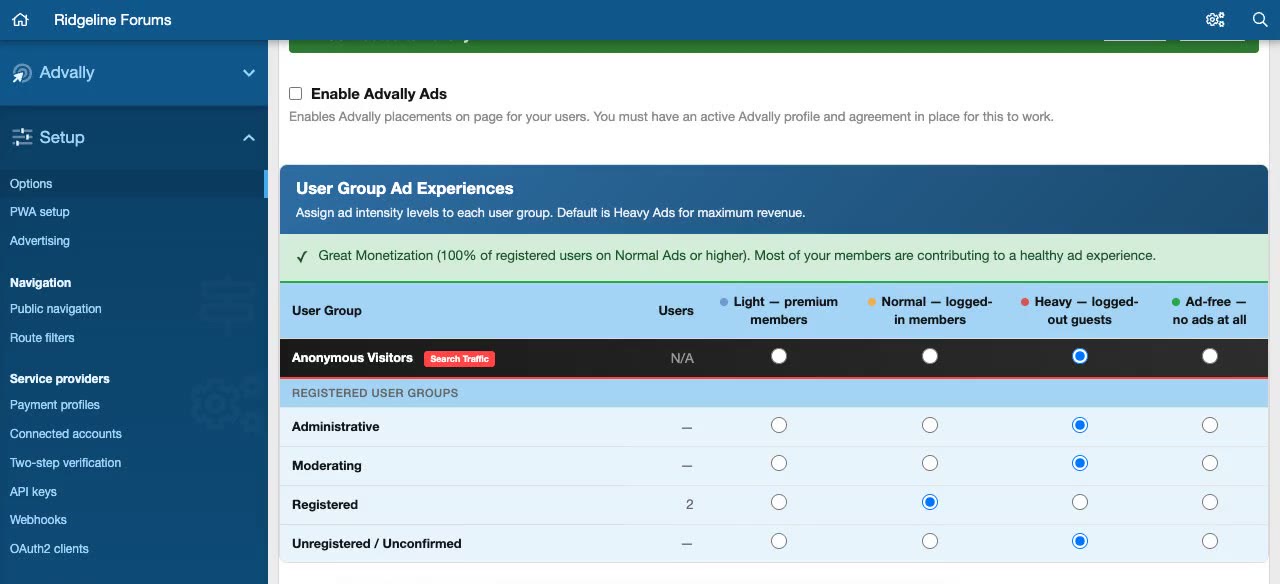
The User Group Ad Experiences table gives every user group one of four ad levels:
- Light, the fewest ads. Use it for premium members, donors or staff.
- Normal, the standard level for logged-in members.
- Heavy, the most ads. This is the default for logged-out guests.
- Ad-free, no ads at all.
Pick a level in each row. Without a choice, a group gets Heavy. The Anonymous Visitors row is everyone who isn’t logged in, which is mostly your search traffic, so it has the biggest effect on your revenue. We recommend keeping it on Heavy, and the plugin shows a revenue warning if you set it lower. When a member belongs to more than one group, they get the lightest level of all their groups, and a member of any ad-free group sees no ads.
Turn an ad type on or off
Under Ad Unit Configuration, every ad on your forum has its own card, with a column for each ad level: Light, Normal and Heavy. To remove an ad type for a level, clear its checkbox in that level’s column. The cards are:
- Header Leaderboard, the banner at the top of every page: Enable on Desktop? and Enable on Mobile?. Position sets where it sits: Above site header, Above breadcrumb (recommended) or Below breadcrumb.
- Sidebar Units: Top of sidebar (300×250)? and Bottom of sidebar (300×600)?
- Video Player, Content Recommendation Widget and Quiz Widget, which run inside threads: turn each on or off, and set Show after post # to choose where it appears. If two of them target the same post, only one shows.
- Interstitial Ads, Bottom Adhesion (Sticky Footer), Top Adhesion (Sticky Header) and Side Adhesion (Sticky Sidebar): turn each on or off for desktop and mobile. The next section covers their extra settings.
Tune the sticky ads
The sticky ads have extra settings on their cards:
- Bottom Adhesion (Sticky Footer): Double unit (side-by-side)? shows two ads next to each other on wide screens. Scroll distance before ad appears delays it until the reader scrolls that far (0 shows it at once). Close duration sets how long before the reader can dismiss it. Hide margin bottom (px) hides it when the reader scrolls within that distance of the page bottom. Offset bottom (px), Background color and Opacity style it.
- Top Adhesion (Sticky Header): Offset from top, set separately for desktop and mobile, moves it down so it clears a sticky menu.
- Side Adhesion (Sticky Sidebar), desktop only: pick Left or Right, Middle or Bottom, and the Minimum screen width (px) it needs before it shows.
- Z-Index applies to all sticky ads and defaults to 500. Raise it if a sticky ad hides behind your menu. Lower it if it covers something it shouldn’t.
Change how often inline ads appear
Three cards control the ads between rows of content: Forum List Page, Forum View Page (Thread List) and Thread View Page (Between Posts). For each ad level, set Ad frequency to one of four presets:
- Off: no inline ads on that page type.
- Light: an ad every 8 rows or posts.
- Standard: an ad every 5.
- Heavy: an ad every 3.
For an exact number, open Advanced on the card and enter it in Show ad every [X] posts (or threads, or forum rows). Zero turns the ad off. On the thread list you can also turn Start ads at top of list? on or off, and delay the first ad with Skip first [X] threads before showing ad. A lower number means more ads.
Show ads in some forums only
Use this when another ad partner runs part of your board, or when a forum should stay ad-free for everyone.
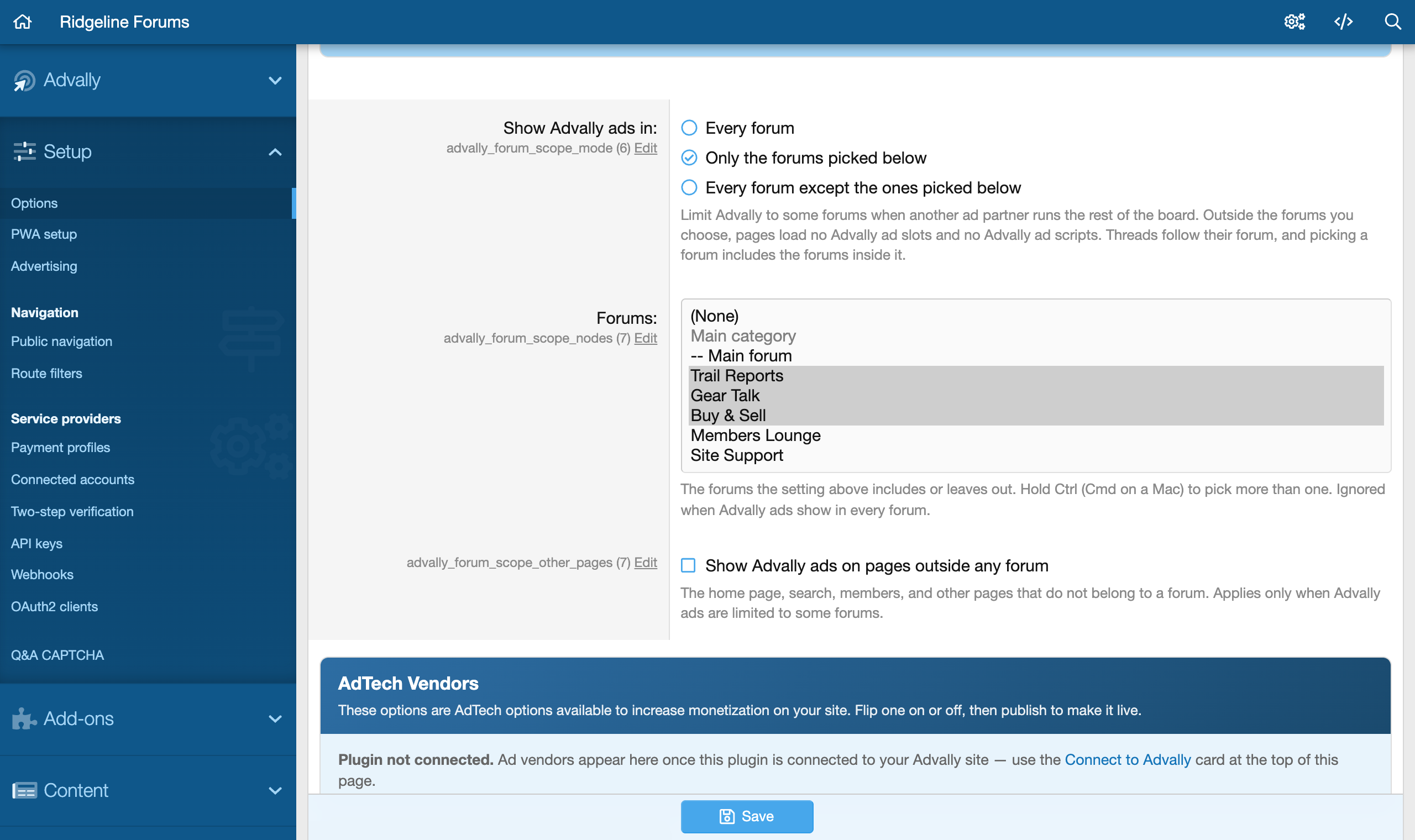
- In Show Advally ads in, select Only the forums picked below or Every forum except the ones picked below.
- In Forums, pick the forums. Hold Ctrl (Command on a Mac) to pick more than one. Picking a forum includes the forums inside it.
- Optional: select Show Advally ads on pages outside any forum to keep ads on the home page, search and member pages.
- Click Save.
A thread follows its forum. To go back to ads everywhere, set Show Advally ads in to Every forum and save.
Add extra ad partners
The AdTech Vendors card lists extra ad partners that can raise your earnings. Click Request approval to ask for one. After Advally approves it, use On and Off to switch it, then publish. A partner shows ads only while Advally has it live for your site.
Protect readers from scam ads
Malvertising protection mode is set to Enforce by default. It blocks ads from redirecting your readers to scam pages, and a small share of rich-media formats might be affected. Report only watches and reports these attacks. It doesn’t block them. We recommend leaving it on Enforce. During an active attack, use Under Attack Mode on the same page to enforce for 72 hours.
Check your change
Wait 1 to 2 minutes after you publish, then open your forum in a private window and scroll, with any ad blocker turned off. Ads load as they come close to the screen, so a slot further down the page fills only when you reach it. If nothing changed, check that you clicked Publish, and that you edited the right group: logged-out visitors are the Anonymous Visitors row, not the Unregistered / Unconfirmed group.
WordPress: where the settings are
In WordPress admin, go to Settings > Advally Advertising. The settings are on tabs, and each tab has a Save Changes button.
- To choose how many ads each visitor type sees, open the Experience tab. Guests, Members and Premium each get an ad level from Ad-Free to Heavy, and Premium Roles picks which WordPress roles count as Premium.
- To change the ads inside your posts, open the Placement tab. Inject ads in post content turns in-article ads on or off, Insert every sets how many content blocks sit between ads, and Minimum blocks required skips short posts.
- To keep one post ad-free, add the custom field
advally_ad_freewith the value1to that post. - To stop all ads at once, clear Enable Ads on the General tab. Ads stop immediately.
Install, connection and troubleshooting steps for WordPress are in Advally WordPress Plugin.
Changes we make for you
Some changes are set on our side, not in the plugin: ad sizes, new ad positions, what an empty ad slot does, which ad partners bid on your inventory, the ads.txt lines those partners need, and your payments and revenue reports. Email [email protected] with your site name and the change you want, and we’ll take it from there. If you’re not sure whether a change is yours or ours, ask us. We’re happy to walk you through the plugin on a short call too.