
Ads.txt is a text file introduced by the IAB Tech Lab to help combat ad fraud and ensure transparency in digital advertising. Publishers typically upload this file to the root of their webserver (eg: /ads.txt), and it allows buyers to verify the inventory they are buying is legitimate.
In many cases, ad management companies will suggest using an HTTP Redirect to send requests for this file to a copy hosted by their ad management company.
In this article:
Why A Redirect Is Helpful
Ads.txt can be lengthy and will change frequently, even as often as multiple times per day. Publishers who host their own /ads.txt will therefor need to update the contents of this file regularly, which is time consuming and error prone.
Redirecting request for ads.txt to a hosted version means the publisher is not required to keep the contents up to date.
How Does It Work?
Your webserver receives requests from users for content and other assets, such as Images, JavaScript, and CSS (Style Sheets). Self hosting ads.txt means you upload the file “ads.txt” to the root of your website, so it’s accessible with the URI “/ads.txt”
However the IAB Ads.txt Specifications allows for a “single HTTP redirect to a destination outside the original root domain is allowed to facilitate one-hop delegation of authority to a third party’s web server domain.” Which essentially just means you can redirect “/ads.txt” from your website to a copy hosted somewhere else, such as a providers CDN.
Two Rules That Decide Whether It Works At All
- Use a 301 (permanent) redirect, not a 302. A 302 tells crawlers the delegation is temporary, so some re-check the original location and can treat the file as unstable.
- The IAB spec allows only ONE redirect off your root domain. If
/ads.txtalready redirects somewhere else today, do not chain a second hop onto it — replace the existing rule instead. Chaining silently stops the file from being read at all, and it is the most common reason a redirect that “looks right” does not work.
How To Create Or Edit A Redirect
There are likely two places where you can manage a redirect. If you use a Content Delivery Networks (CDNs) such as CloudFlare, they often have the ability to redirect requests for assets before the request reaches your webserver. If you don’t use a CDN, then the webserver itself could return the redirection destination.
Create A New Redirect Rule in CloudFlare Rules
- Login to your CloudFlare account and navigate to your Domain Settings
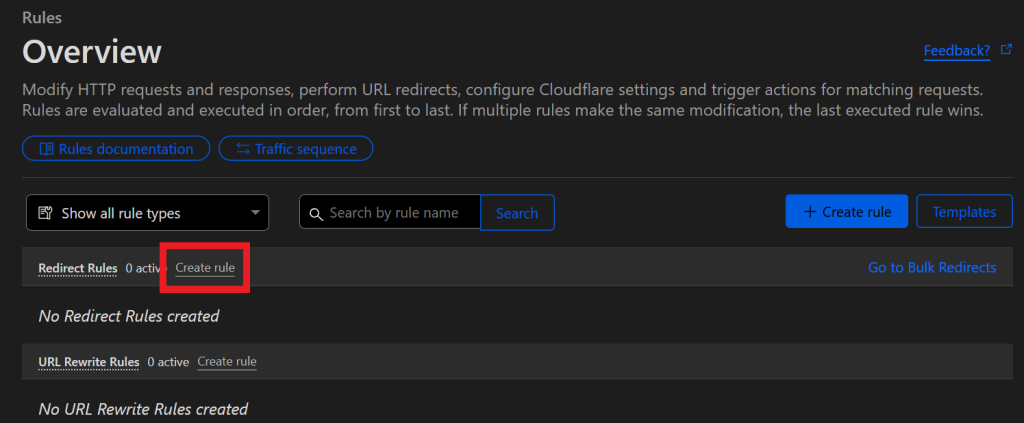
- Expand “Rules” on the left side navigation, then click Overview
- Under the “Redirect Rules” section, click “Create rule“
Enter the following settings:
- Name = Adst.xt Redirect
- If incoming requests match = Custom filter expression
- URI Path equals /ads.txt
Use equals, not Starts With. A “starts with” match also catches paths like/ads.txt.bak. The equivalent expression, if you are editing it as text, is(http.request.uri.path eq "/ads.txt").
- URI Path equals /ads.txt
- Redirect Type = Static
- Status Code = 301
- Preserve query string = off
- URL = <Destination for the redirect>
Click Deploy to save and activate the Redirect Rule.
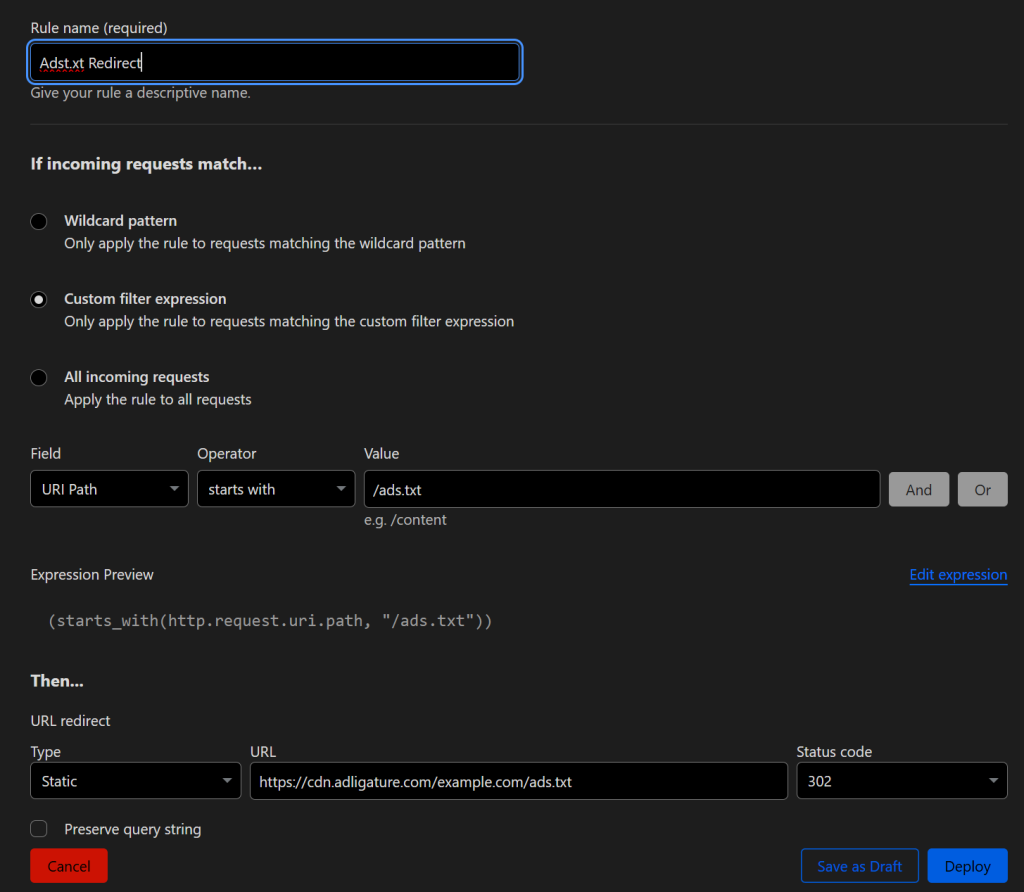
Example Ads.txt Redirect with CloudFlare Redirect Rule. The screenshots above show where these settings live in the Cloudflare dashboard; they were captured before the corrections on this page, so where a screenshot and the settings list disagree, the list is correct.
Edit A Redirect Rule in CloudFlare Rules
It’s possible you have existing redirects using CloudFlare’s older Page Rules instead of their new Rules system. The instructions below describe how to edit the newer Redirect Rules, but the settings are similar for Page Rules, which can be found under Rules > Page Rules in the left sidebar navigation.
- Login to your CloudFlare account and navigate to your Domain Settings
- Expand “Rules” on the left side navigation, then click Overview
- Or click Page Rules, if using this system instead
- Click on the name of the rule to edit
- Edit the destination redirect to the URL given to you by your ad management provider
- Click Save
See above for a screenshot for configuring a redirect with CloudFlare Rules.
Redirect using Apache 2
If your webserver uses Apache2, you can edit .htaccess in your webroot to add (or edit) the following redirect:
RedirectMatch 301 ^/ads\.txt$ https://cdn.adligature.com/example.com/ads.txtRedirectMatch is part of mod_alias, so you do not need mod_rewrite or a RewriteEngine line for a plain redirect. The anchored pattern (^…$) matters: a bare Redirect /ads.txt is a prefix match and would also catch paths like /ads.txt.bak.
Please ensure you are using the correct target destination given to you by your ad management provider.
Redirect using Nginx
If your webserver uses Nginx, you must edit the site configuration for your webserver under “/etc/nginx/sites-enabled”. Add or edit a block such as below.
location = /ads.txt {
    return 301 https://cdn.adligature.com/example.com/ads.txt;
}
location = is an exact match (nginx checks these first, and it cannot leak onto similar paths), and return is the modern replacement for rewrite — no regex is evaluated. Note that rewrite … redirect issues a 302, which is why the older snippet did not satisfy the 301 rule above. Reload with nginx -t && systemctl reload nginx.
Please ensure you are using the correct target destination given to you by your ad management provider.
Check Your Work
From any machine, run:
curl -sI https://your-domain.com/ads.txtIt should return 301 with a location: header pointing at the destination your ad management provider gave you — and following that location should return 200. If you see a 302, or a second redirect after the first one, re-read the two rules above.