
If your readers say an ad sent them to a scam page, such as a fake virus warning or a fake Apple security page, turn on Under Attack Mode. It locks every ad on your site in a sealed frame, so a bad ad can’t take over the page and redirect your visitors.
When to use it
- A reader says an ad sent them to a scam or “your phone is infected” page.
- Your site opens a page nobody clicked on.
Advally also turns it on for you when two or more readers report a scam redirect on your site within 72 hours. You don’t have to wait for us.
Turn it on
- Sign in at app.advally.com.
- In the left menu, under your site, click Property Dashboard.
- In the Under Attack Mode panel, click Activate Under Attack Mode.

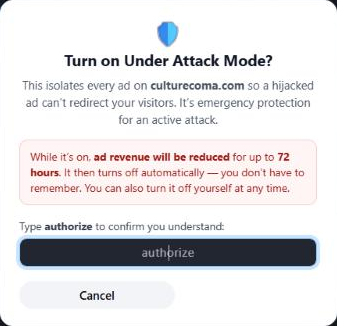
- In the dialog, type authorize, then click Activate protection.
The button turns red and shows how long protection has left. Your ad settings update across your site within a few minutes.

What it costs
Some ads can’t run inside the sealed frame, so ad revenue drops while protection is on. That’s why it switches itself off after 72 hours. If the attacks continue, turn it on again, or tell us and we’ll keep it on while we find and remove the bad ad.
Turn it off
Click the red button and confirm. Your ads go back to normal right away.
Who can use it
Anyone with an administrator or technical role on your publisher account. If you don’t see the panel, reply to any email from us and we’ll set up your access.
Report a bad ad
Tell us what happened, the time, and the device. A screenshot of the scam page or its web address helps us find the ad and block it at the source. See How can I report a Bad Ad Experience?