
What FS Poster does
FS Poster is a WordPress plugin that automatically shares each post you publish to your social networks — and on Facebook it does it the way that gets the most reach: it uploads your featured image to Facebook as a full photo post (the big image people see in their feed, not a small clickable link box) and puts the article link in the first comment, not in the caption.
This matters because Facebook quietly limits the reach of posts whose caption contains a link to another website. Full photo posts reach far more people, and putting the link in the first comment still sends readers to your article while sidestepping that penalty. Advally configures this for you; this guide covers the part you control — connecting your accounts and publishing well.

How your post lands on Facebook: a photo, a hook caption (no link), and the article link in the first comment.
Part 1 — Connect and authorize your social networks
Before FS Poster can post for you, each network has to be connected with an account that can publish to it. You only do this once per network (and again if a connection later expires).
Finding FS Poster: it lives in the left-hand menu of WordPress admin (wp-admin). If you don’t see it there, your account may not have the right permissions — ask your Advally point of contact.
One requirement up front: FS Poster posts to a Facebook Page, not a personal profile. If your brand currently runs off a personal profile, you’ll need to create a Page first (Advally can help), and you must be an admin of that Page.
- Go to FS Poster → Channels.
- Click Add channel and choose the network (for example, Facebook).
- Click Sign in with Facebook and approve the connection, signed in as an admin of the Facebook Page you want to post to. On the permission screen, leave every requested permission enabled — if you turn any off, posting may silently fail later.
- Select your Page and activate the channel.
- Repeat Add channel for any other networks you want (X/Twitter, LinkedIn, Instagram, and so on). Note: Instagram requires a Professional/Business account linked to your Facebook Page — a personal Instagram account won’t connect.
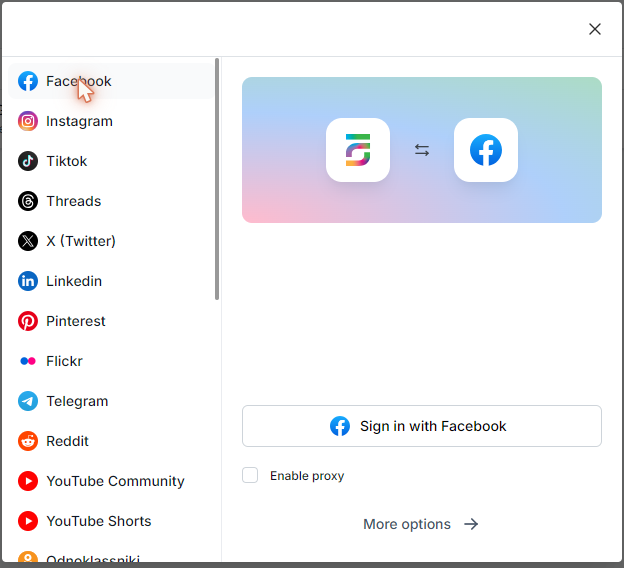
Channels → Add channel: pick the network, then Sign in with Facebook.
If a channel shows “disconnected — please reauthorize”: the connection has expired (this happens periodically, or when Page roles change). Open that channel and reconnect with Sign in with Facebook again, as a Page admin. Nothing else is lost.
Part 2 — Publishing a post
Once a network is connected and set to auto-share, you don’t post to it by hand anymore — publishing in WordPress does it. The share goes out when you publish the post (or, if you schedule the post in WordPress, when it goes live).
FS Poster also adds a panel to the WordPress post editor where you can turn off sharing for an individual post before you publish — handy for corrections or anything you’d rather not put on Facebook.
Two things you control decide how well a post performs:
1. Set a strong featured image
On Facebook, the featured image is the post. Choose a high-contrast, eye-catching image that stops the scroll — a face, a moment, a dramatic visual. Make sure every post has a featured image set; without one there is no photo to post.
2. Write a hook caption — with no link
The caption is the text above the photo. Make it a hook: a bold take, a question, something people want to react to. Keep it short — a line or two.
Do not paste the article link in the caption. FS Poster adds the link automatically as the first comment. A link in the caption cancels out the whole strategy.
Then publish as normal. FS Poster shares the photo with your caption and drops the link in the first comment.
Part 3 — Check it worked
Open the post on your Facebook Page and confirm:
- It appears as a big photo filling the post — not a small box with a thumbnail, headline, and website name (that small box is the “link preview” we want to avoid).
- The caption has no link in it.
- The first comment contains the article link.
- If the post went out with no image (text only), it was missing a featured image — set one before publishing next time.
If you see a link-preview box instead of a photo, or the link landed in the caption, that’s a settings issue on our side — not anything you did. Just contact your Advally point of contact and we’ll fix it.
Good habits
- Every post needs a strong featured image and a hook caption — those two things do most of the work.
- Vary the hook. Questions and bold opinions outperform plain summaries.
- Don’t repeatedly post the same link to the Page in a short window.
Behind the scenes
For reference only — you don’t need to open or change this. FS Poster’s Facebook posting settings (Settings → Social Networks → Facebook → Post Customization) are where your Advally team sets up how your posts go out: the featured image as a photo, and the link as the first comment.
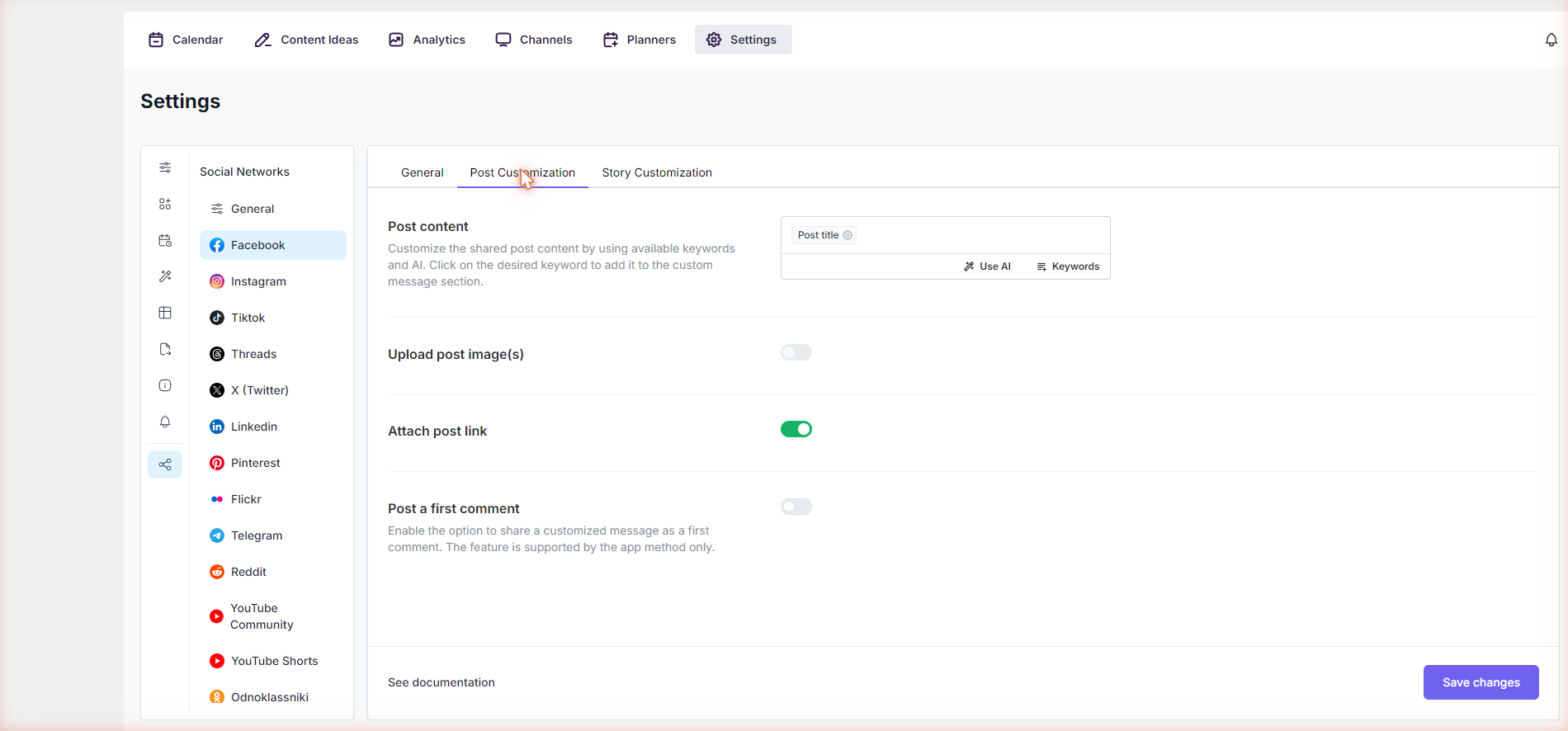
FS Poster → Settings → Social Networks → Facebook → Post Customization — the posting options your Advally team configures.
Questions, or need a hand connecting an account? Reply to your Advally team and we’ll help.