
When you report an ad you don’t want on your site, it helps us solve the issue faster if you can gather a bit of information about what you saw. The more information you gather, the faster we’ll get it taken care of.
It is critical to understand that every ad experience is customized to the individual user in programmatic, it can be difficult for our team to know exactly the ad that you saw.
NEW: Use our Improved Advally Ad Reporting Tool to directly submit ad reports.
Send an Email
If you really like using email to submit issues, that is perfectly OK but to give us the best chance possible to get your problem addressed rapidly, we need you to follow a few guidelines when sending the email.
1. Send in one email for each issue with a separate, descriptive and unique Subject Line. Our team is on call to process the issue, and the more information you provide the faster we are to get it done.
2. Emails should be sent to [email protected] this is a group email inbox that goes directly into our Operations system, and notifies all staff at the same time. You will get a response from a real human on our staff with their name included, and this address is a better way to get help than to email staff individually. People take vacations, get sick and have days off. [email protected] does not take any breaks.
3. Email Subject line should be formatted with “Objectionable Ad on [yoursite.com] that needs to be taken down”
4. Email Body should contain a Description of the ad with as much detail as you have, a link to the page on which you saw the ad, and at least one Screen shot of the ad. Without this information, it can take days to track down the offending ad.
If we do not have a screen shot of the ad in question, it can take hours or days to figure out which ad is the problem without knowing exactly what it was that you saw in your specific session of the site at that moment.
Gathering information about the Problematic Ad:
Screen Shots
Windows: Press Windows Logo Key + Shift + S to use the Snipping Tool
Mac OS: Shift + Command + 3
iOS: Press the side button and the volume up button at the same time
Android: Press the Power and Volume Down buttons at the same time. If this does not work, press and hold the Power button for a few seconds, then tap Screenshot. If neither of these work, go to your phone manufacturer’s support site for help.
GAM Line Item / Creative ID reporting
If you are getting unwanted ad behaviour in a display slot but are having a lot of trouble identifying the ad, you can load the page with the Google Ad Manager Debugging tool parameter added to the URL listed in the Address Bar:
?google_console=true
This will open the Google Debug Console at the bottom of the browser window. Use the above method of capturing a screen shot to file a support ticket.
Capture Page HTML
The page HTML may be able to help us discern which unit is causing the problem. This is a simple way to grab the page contents you are currently seeing.
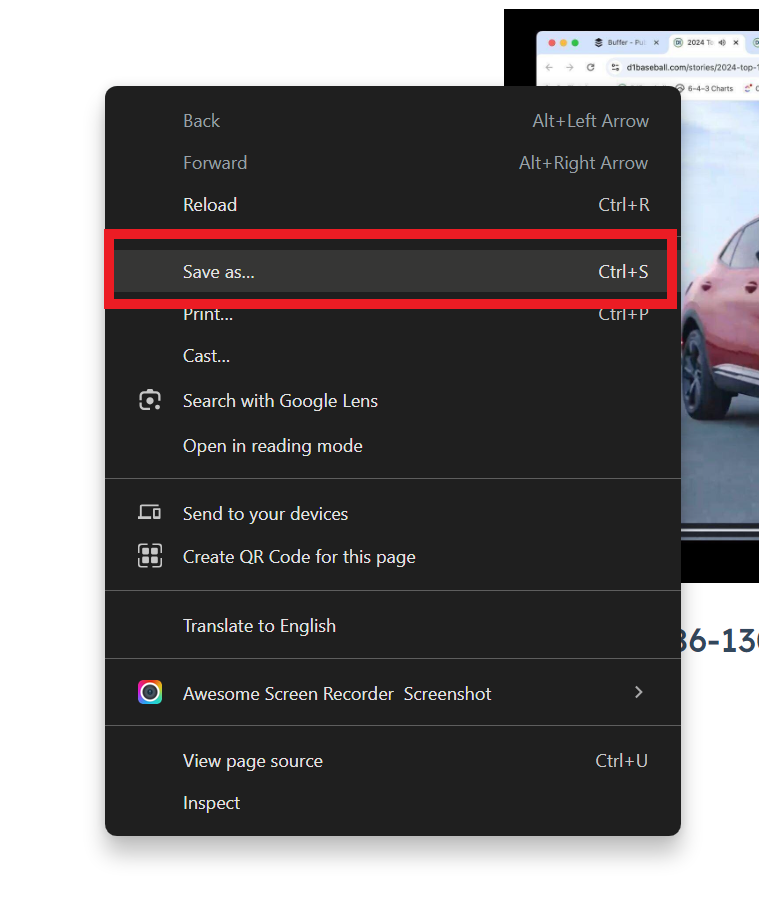
- When you have seen the issue, don’t refresh or reload – Right click anywhere on the page (only works either on Desktop or an Emulated Mobile Experience)
- Click “Save As” and save the file somewhere on your computer with a name like “Advally Ad Issue on mysite.com”
- Click on the “Network tab” of Dev Tools
The “Network” tab may be hidden behind the “>>” button.
Capture HAR Report (Desktop)
HAR files allow you to send captured network traffic so we can track down bad ads or malware (redirects).
- Open a blank Google Chrome tab
- Open the Developer Tools (F12 on Windows)
- Click on the “Network tab” of Dev Tools
The “Network” tab may be hidden behind the “>>” button.
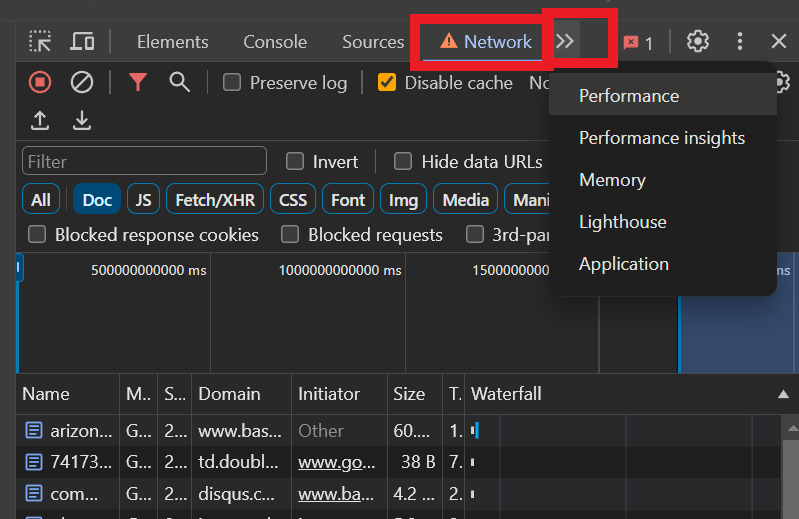
4. Clear the Network log with the “Clear” button at the top right of Dev Tools
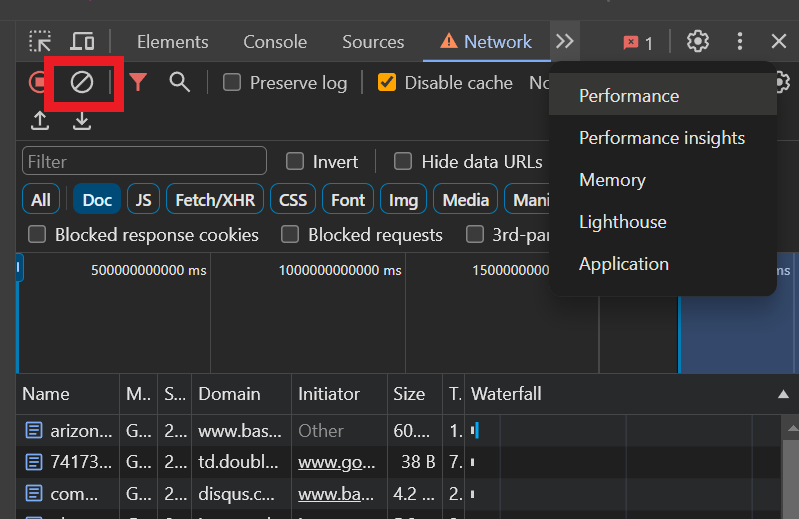
5. Refresh the page and wait for the issue to appear. The Network tab will capture and display all of the network traffic and data.
6. Right click on any of the network requests and select “Save all as HAR with content”
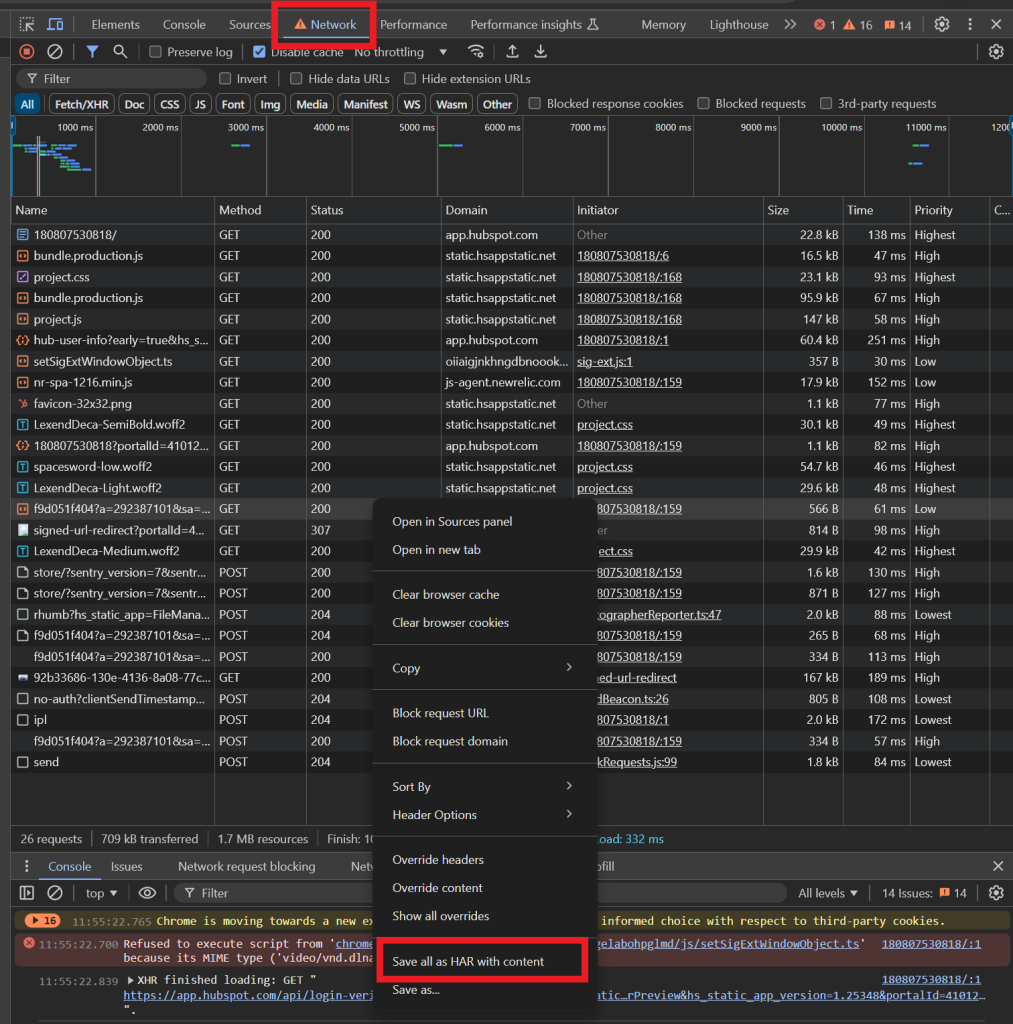
7. Send this file in with your Ad Report
Capture HAR Report (Mobile)
HAR files allow you to send captured network traffic so we can track down bad ads or malware (redirects). In order to do this on mobile, there are a few extra steps. On your iOS device you must have:
- iOS 16.4 or greater.
- Chrome 115 or greater.
On your Mac you need:
- The Safari Develop menu enabled. Enable this from Safari application settings, Advanced Settings tab:
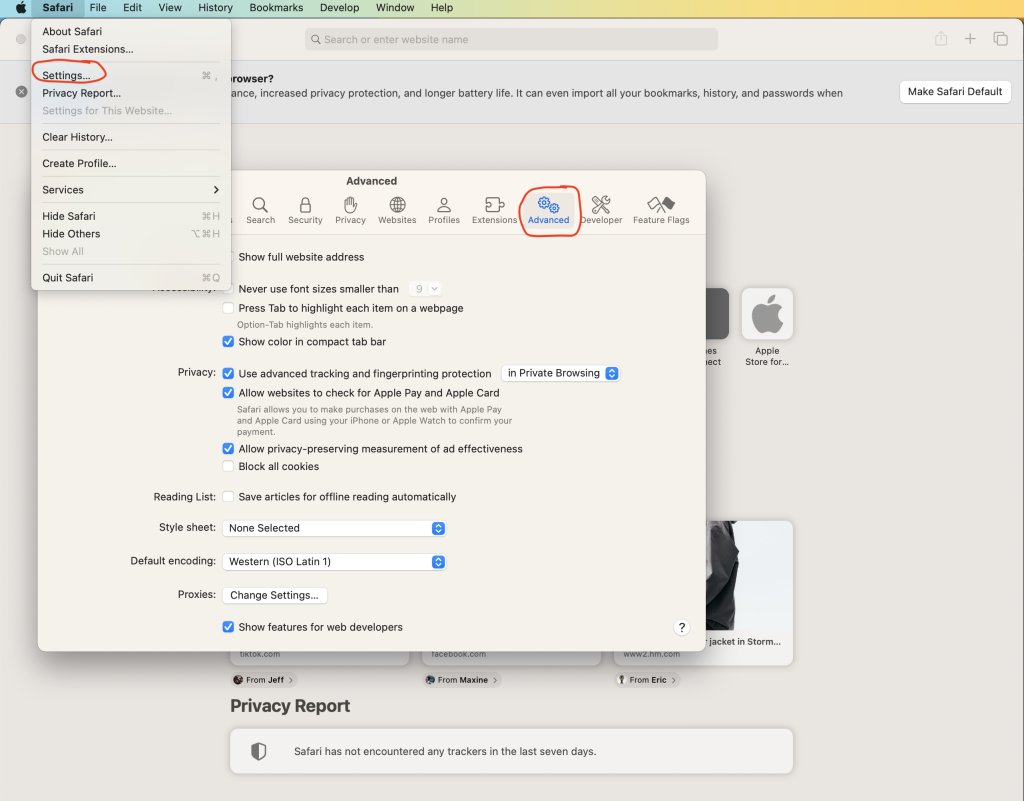
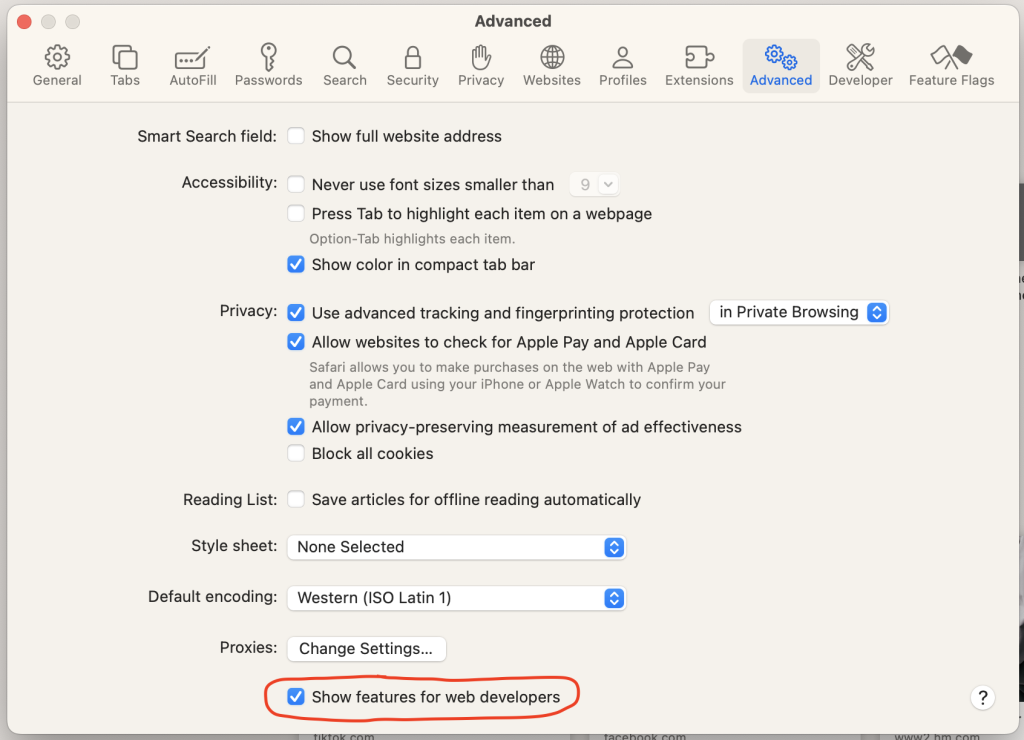
You need to click the checkbox next to “Show features for web developers” at the very bottom:
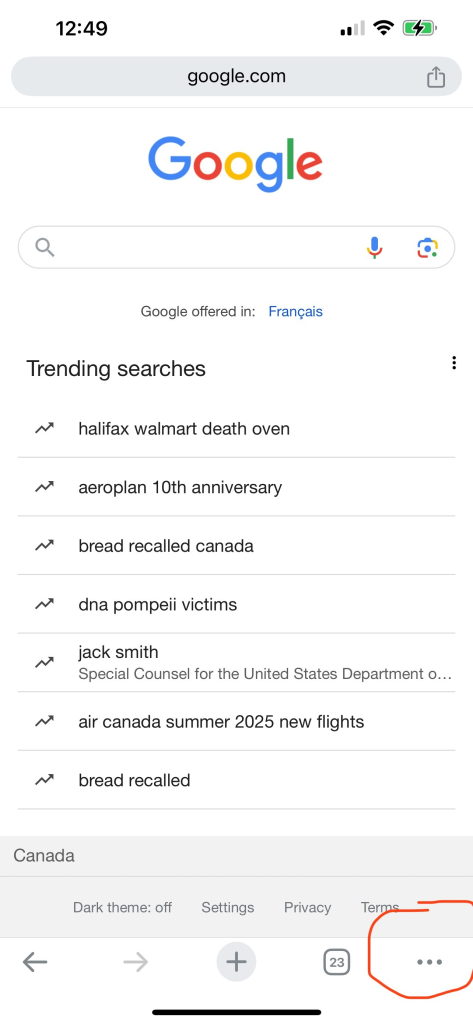
On your iOS device launch the Chrome app and navigation to Settings. In Content Settings, enable Web Inspector.
Press the three dots in Chrome:
Select Settings:
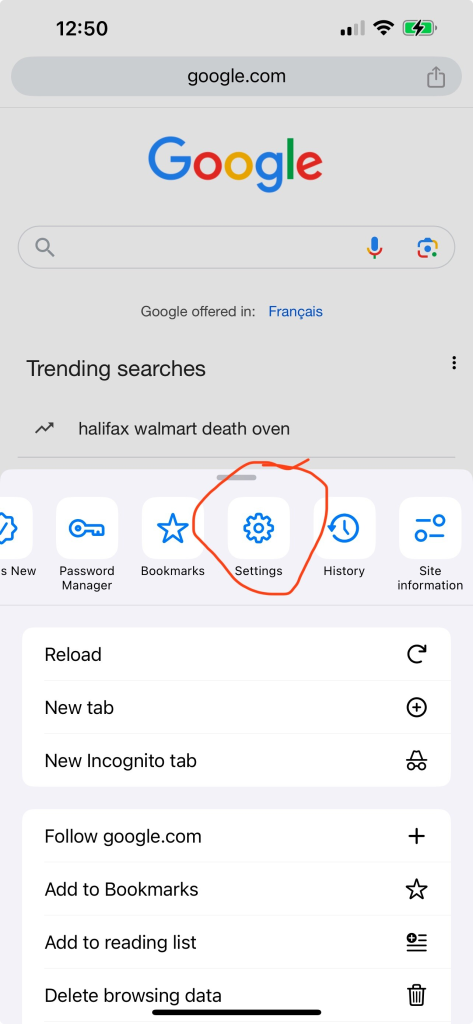
Navigate to Content Settings:
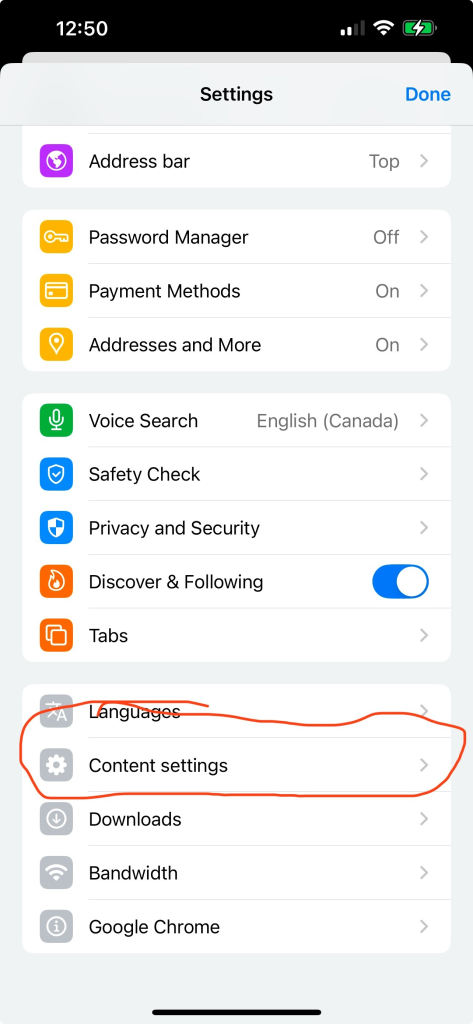
Enable Web Inspector:
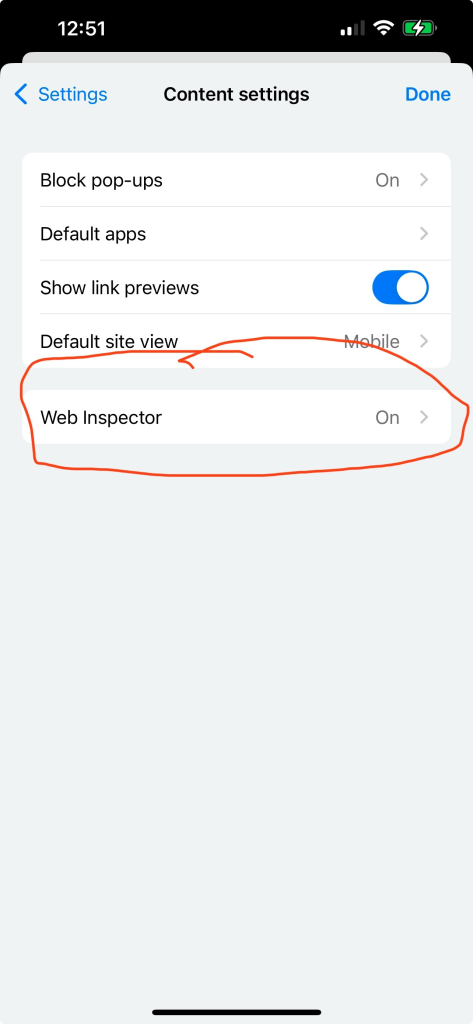
Now you are ready!
When enabling Debugging on your site, you must connect your iPhone to your Mac with a cable.
- In Chrome for iOS, Navigate to your site and get ready to find the bad ad.
- On your Mac, launch Safari. From the Develop menu, hover over the name of your connected device and select the URL of the website which you would like to inspect.
- Click on the “Network tab” of the Web Inspector:
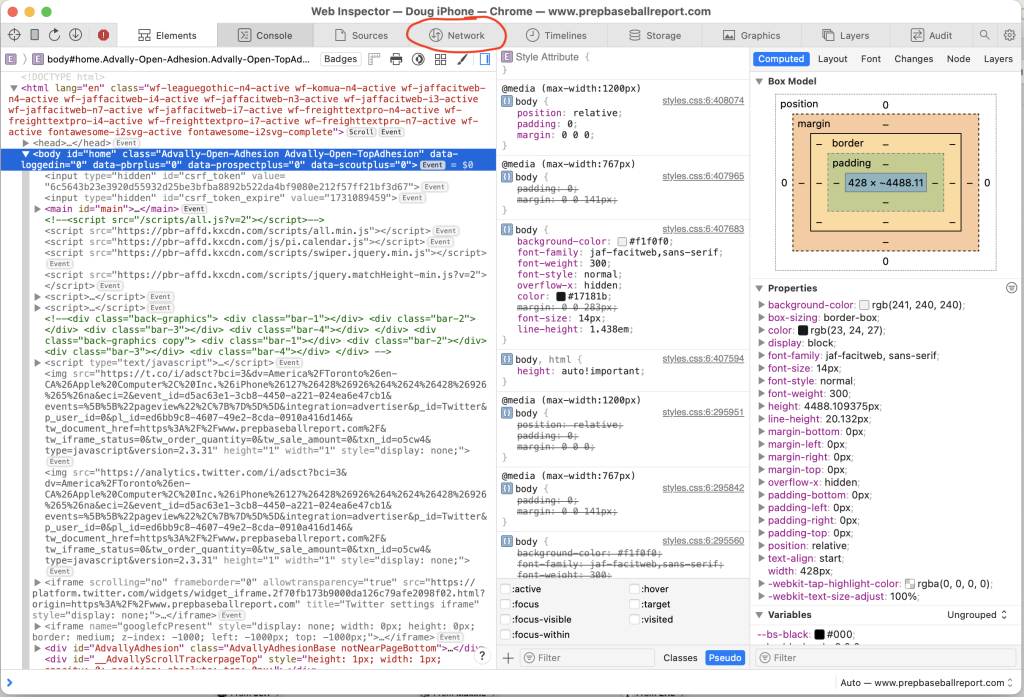
4. Clear the Network log with the “Trash” button at the top right of Web Inspector
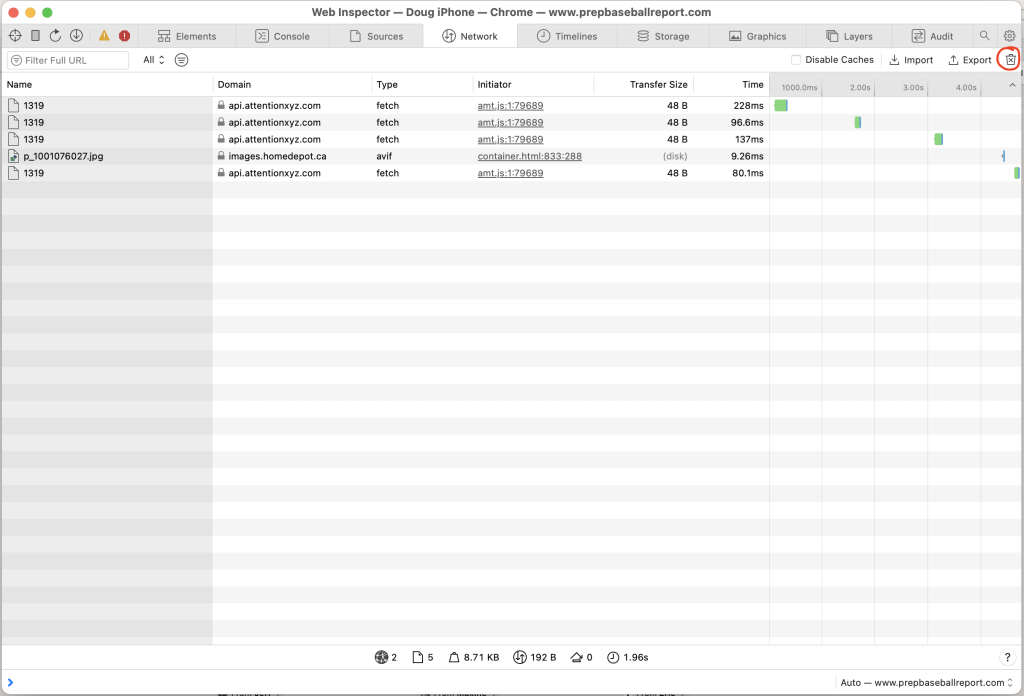
5. Go back to your iOS device and navigate on the site until the bad ad appears. The Network tab will capture and display all of the network traffic and data.
6. Right click on any of the network requests on the left and select “Export HAR
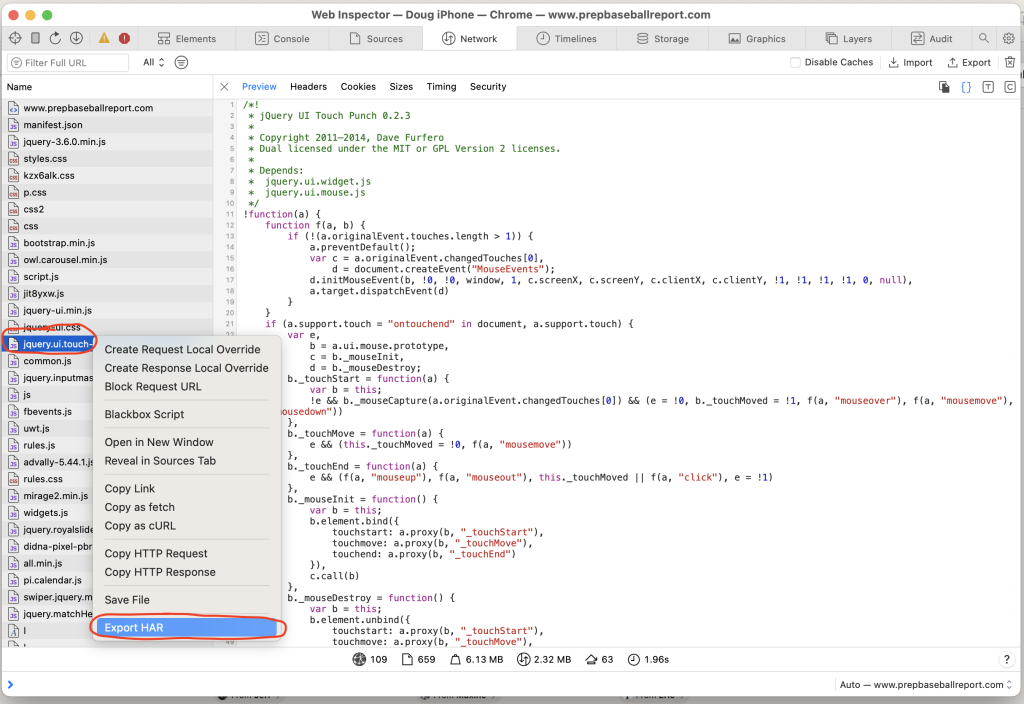
7. Send this file in with your Ad Report!