
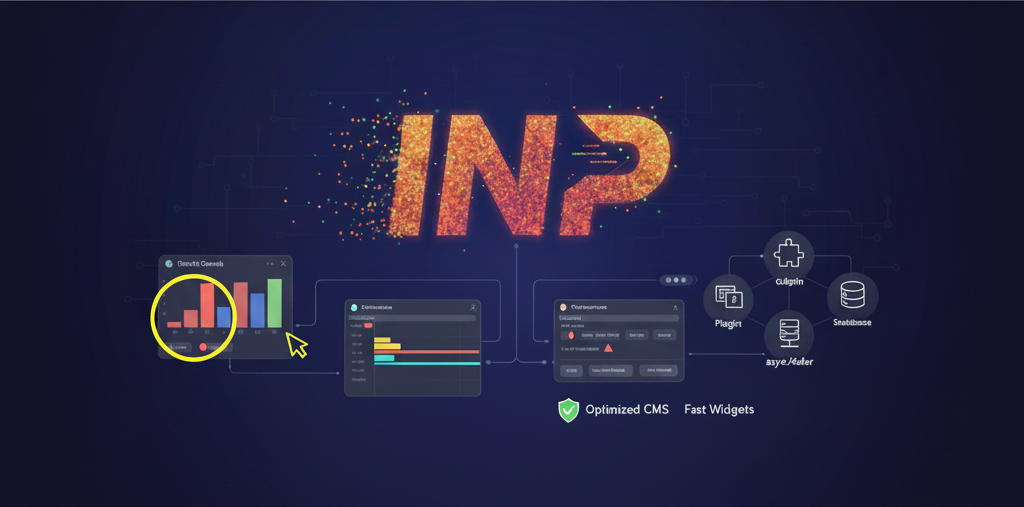
If you make money with Advertising, look at the whole picture
The web is a dynamic place, constantly evolving to deliver richer, more interactive experiences. With this evolution comes a heightened expectation for responsiveness. Enter Interaction to Next Paint (INP), a crucial metric in Google’s Core Web Vitals that measures how quickly your website responds to user input. A poor INP score can lead to frustrated users, lower engagement, and ultimately, a hit to your bottom line.
Ad scripts do contribute to page slowdown, but you need that revenue to run your business. In an ad supported property, optimizing INP requires a more nuanced approach. Google, after all, is deeply invested in a healthy web ecosystem for all its participants. This post will guide you through diagnosing and correcting INP issues, looking beyond the obvious to identify and tackle the root causes, ensuring your site is lightning-fast and delightful for every visitor.
Understanding INP: The User’s Perspective
INP measures the time from when a user interacts with a page (e.g., clicking a button, tapping a link) until the browser visually updates the page in response. A low INP score means your site is snappy and responsive; a high score indicates frustrating delays. Think of it like this: a user clicks a “submit” button, and if nothing happens for a noticeable period, they might click again, leading to double submissions or abandonment.
The Diagnostic Toolkit: Where to Start
The good news is that you have powerful tools at your disposal to pinpoint INP culprits.
1. Google Search Console
Your first stop should always be Google Search Console. Navigate to the “Core Web Vitals” report. Here, you’ll see a summary of your site’s performance across different device types and URLs. Pages flagged as “Poor” or “Needs Improvement” for INP are your immediate targets.
http://googleusercontent.com/image_generation_content/0
2. PageSpeed Insights
Once you’ve identified specific problematic URLs, plug them into PageSpeed Insights. This tool provides both field data (real user data) and lab data (simulated performance). Pay close attention to the “Diagnose performance issues” section, which will highlight specific opportunities for improvement, including those related to INP.
http://googleusercontent.com/image_generation_content/1
3. Chrome DevTools (Performance Tab)
For a deeper dive into lab data and real-time analysis, Chrome DevTools is your best friend.
- Open your problematic page in Chrome.
- Right-click anywhere on the page and select “Inspect” (or press
Ctrl+Shift+I/Cmd+Option+I). - Go to the “Performance” tab.
- Click the record button and interact with your page as a user would. Click buttons, scroll, hover – trigger interactions that might be slow.
- Stop recording and analyze the flame chart. Look for long tasks (indicated by red triangles or long blocks in the main thread) that occur after an interaction. These are prime candidates for optimization.
http://googleusercontent.com/image_generation_content/2
Common Culprits & How to Fix Them
Now that you’ve got your diagnostic tools ready, let’s explore common causes of poor INP and actionable strategies to fix them.
1. Overzealous JavaScript Execution
JavaScript is often the primary driver of interactivity, but it can also be a significant blocker.
- Problem: Long-running JavaScript tasks on the main thread prevent the browser from responding to user input, leading to a high INP. This can be complex client-side rendering, data processing, or animation calculations.
- Solution:
- Break up long tasks: If a script takes more than 50ms to execute, consider breaking it into smaller, asynchronous chunks using
setTimeoutorrequestAnimationFrame. - Debounce and throttle event handlers: For events that fire frequently (like scrolling, resizing, or typing), use debouncing or throttling to limit how often their associated functions execute.
- Web Workers: Offload computationally intensive tasks to Web Workers, which run on a separate thread, freeing up the main thread to handle user interactions.
- Code Splitting: Load JavaScript only when it’s needed for a particular interaction or route, rather than all at once.
- Break up long tasks: If a script takes more than 50ms to execute, consider breaking it into smaller, asynchronous chunks using
2. Third-Party Scripts and Widgets
While it’s tempting to immediately blame all third-party scripts (including ads), the reality is that many essential features like analytics, social sharing widgets, and customer support chatbots can also impact INP if not optimized.
- Problem: External scripts can introduce significant main-thread work, block rendering, and delay interaction responsiveness. This isn’t just about ads; it’s about any external script that isn’t loaded efficiently.
- Solution:
- Load asynchronously/defer: Ensure all third-party scripts are loaded with
asyncordeferattributes. This prevents them from blocking the initial rendering of your page.html ¨K14K ¨K15K - Lazy load non-critical widgets: Only load widgets (e.g., chat boxes, consent banners, social feeds) when they are about to become visible in the viewport or when a user interaction specifically requests them.
- Scrutinize necessity: Evaluate every third-party script. Do you truly need it? Can you achieve the same functionality with less overhead?
- Self-host if possible: For some smaller scripts (e.g., certain analytics snippets), consider self-hosting to reduce DNS lookups and gain more control over caching.
- Prioritize ad loading: Work with your ad providers to implement best practices for ad loading, such as lazy loading ads below the fold and pre-connecting to ad servers. Google AdSense, for example, offers optimized asynchronous loading by default.
- Load asynchronously/defer: Ensure all third-party scripts are loaded with
3. Content Management System (CMS) Overhead
Many publishers rely on CMS platforms like WordPress, Drupal, or Joomla. While powerful, these platforms can introduce performance bottlenecks if not configured correctly.
- Problem:
- Plugins/Modules: An excessive number of unoptimized plugins or modules can inject large amounts of JavaScript and CSS, leading to render-blocking resources and long main-thread tasks.
- Outdated themes: Older themes might not follow modern web performance best practices.
- Database queries: Complex or inefficient database queries triggered by dynamic content can delay server responses and subsequent client-side processing.
- Solution:
- Audit plugins/modules: Regularly review and remove any inactive or unnecessary plugins. Replace resource-heavy ones with lighter alternatives or custom code where appropriate.
- Optimize your theme: Use a lightweight, performance-optimized theme. For WordPress, consider block themes or builder themes that prioritize performance.
- Caching: Implement robust caching mechanisms at all levels: browser caching, page caching (e.g., WP Super Cache, LiteSpeed Cache), and object caching.
- Database optimization: Regularly optimize your CMS database. For WordPress, this can involve clearing transients, optimizing tables, and ensuring efficient custom query usage.
- Server-side rendering (SSR) / Static Site Generation (SSG): For content-heavy sites, explore SSR or SSG where possible. This offloads much of the rendering work from the client to the server or build process, reducing client-side JavaScript execution.
4. Excessive DOM Size and Complex Styling
A bloated Document Object Model (DOM) and inefficient CSS can also contribute to poor INP.
- Problem: A very large and complex DOM tree requires more processing power for the browser to parse, render, and update. Similarly, complex or unoptimized CSS can lead to style recalculations and layout shifts that delay interaction feedback.
- Solution:
- Simplify your HTML: Strive for clean, semantic, and minimalist HTML. Avoid unnecessary nested
divs or overly complex structures. - Virtualization: For very long lists or tables, implement UI virtualization (windowing) to only render the visible elements in the DOM.
- Optimize CSS:
- Minify and compress CSS.
- Remove unused CSS: Tools like PurgeCSS can help identify and eliminate styles not actually used on a page.
- Avoid expensive CSS properties: Properties that trigger layout (e.g.,
width,height,left,top,border) can be costly. Usetransformandopacityfor animations when possible. - Critical CSS: Inline critical CSS (styles needed for the initial viewport) to reduce render-blocking requests, and lazy-load the rest.
- Simplify your HTML: Strive for clean, semantic, and minimalist HTML. Avoid unnecessary nested
The Journey to a Better INP
Optimizing INP is an ongoing process, not a one-time fix. It requires a commitment to regular monitoring, testing, and refinement. By moving beyond knee-jerk reactions and adopting a comprehensive approach that considers all facets of your website—from third-party scripts and widgets to your core CMS and code—you can deliver a faster, more responsive, and ultimately more satisfying experience for your users.
Start small, prioritize the biggest offenders identified by your diagnostic tools, and iterate. Your users (and Google) will thank you for it!